Create Your First Custom Metadata
Custom metadata helps you organize and find assets faster. This guide shows you how to create your first custom metafield in minutes.
Create a Custom Metafield
- Click the App Setup icon in the left navigation panel

- Navigate to Asset Settings > Metafields
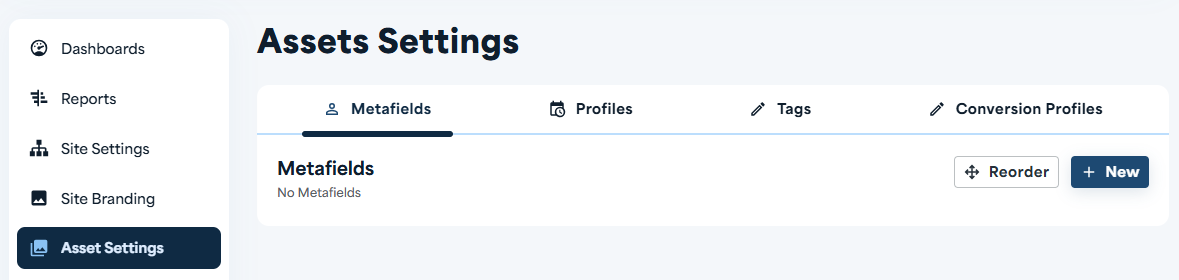
- Click the [+ New] button to create a new metafield
- Enter a name for your field - this is the label users will see when editing assets
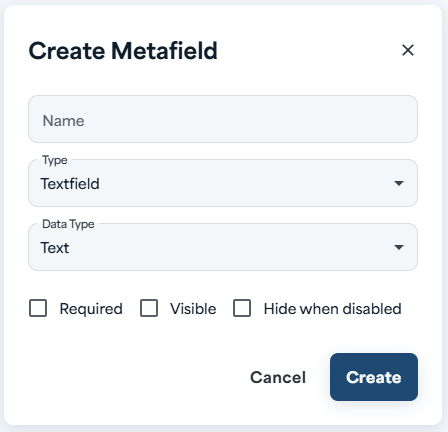
- Select a field type from the dropdown - choose the type that matches the information you want to capture
- Configure your field settings - for Dropdown fields, add your list of selectable values
- Click Save to create your metafield
That's it! Your custom metafield is now ready to use. You can now see your field when uploading and/or editing an asset.
Quick Tips
- Use Dropdown or Autocomplete for easy filtering - these field types let users filter assets in the Library, making search much faster
- Keep it simple - start with one or two essential fields and add more as you need them
- Choose clear names - use descriptive labels so users know exactly what information to enter