How-toGet started › Quick start · Updated 16 Mar 2026
Create Your First Metadata Field
Custom metadata helps you organize and find assets faster. This guide shows you how to create your first custom metafield in minutes.
Create a Custom Metafield
- Click the App Setup icon in the left navigation panel

- Navigate to Asset Settings > Metafields
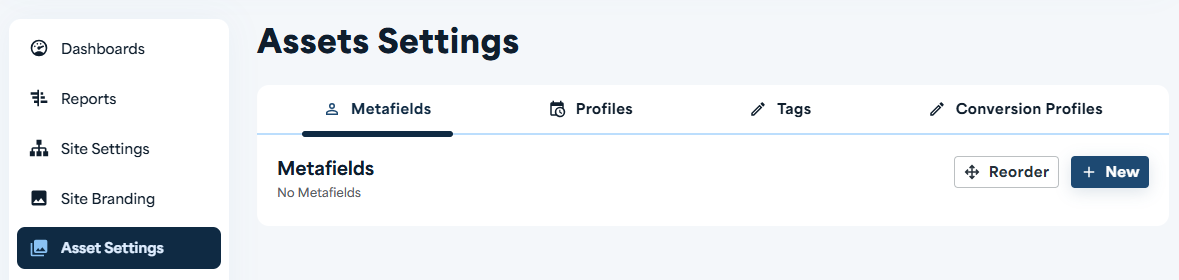
- Click the [+ New] button to create a new metafield
- Enter a name for your field - this is the label users will see when editing assets
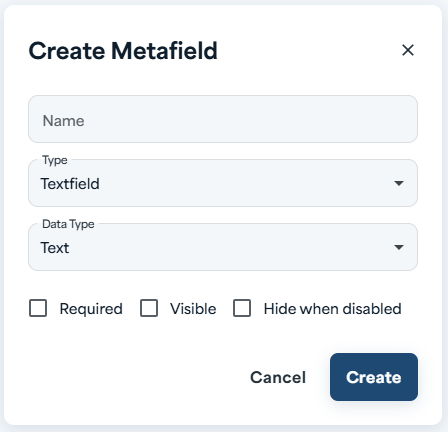
- Select a field type from the dropdown - choose the type that matches the information you want to capture
- Configure your field settings - for Dropdown fields, add your list of selectable values
- Click Save to create your metafield
That's it! Your custom metafield is now ready to use. You can now see your field when uploading and/or editing an asset.
Quick Tips
- Use Dropdown or Autocomplete for easy filtering - these field types let users filter assets in the Library, making search much faster
- Keep it simple - start with one or two essential fields and add more as you need them
- Choose clear names - use descriptive labels so users know exactly what information to enter